0:00
in this video I'm going to show you how to use airmon-ng to discover Wi-Fi networks around you and then
0:05
de-authenticate clients connected to a specific
Wi-Fi network so that we can capture the four-way
0:10
handshake I'll show you how to open up the capture
in Wireshark and look at the four-way handshake
0:15
and see the Wi-Fi password but probably the part
that most people are interested in is I'm going to
0:20
show you how to crack the Wi-Fi password may
this be a warning to you and your family why
0:25
you should use good Wi-Fi passwords I'm going
to show you some of the issues using WPA 2 and
0:31
why you probably want to use WPA 3 today if at
all possible you also want to make sure that you
0:37
use good passwords don't use weak passwords don't
use passwords like I'm going to show you in this
0:42
demonstration don't use passwords like your
telephone number it's amazing how many people
0:46
still use bad passwords today I'll also show you
how to use Wifite to crack the Wi-Fi network Wifite
0:52
is basically a script that combines a whole
bunch of tools together to make it much much
0:56
easier to crack Wi-Fi networks but I'll show you
in this video how Airmon-ng and Wifite can be used
1:00
to crack a WPA 2 network but fails to crack WPA 3
use WPA 3 if you can also look at using Wi-Fi 6 use
1:09
5 GHz and 6 GHz far fewer devices support those
frequencies however but they give you more bands
1:16
so better WI-FI and it's less likely that someone
using a basic adapter like this will be able to
1:23
crack those networks because this only supports
2.4 GHz I'll also show you in this video how you
1:29
can use Mist to download packet captures from
an access Point's point of view so when there's
1:34
an authorization failure wrong password is used
what do the Wireshark captures look like so I'll
1:39
show you those as well in this video so for this
demonstration I'm going to be attacking a Mist
1:43
Wi-Fi network this is an AI powered Wi-Fi network
but if it's badly configured hackers will still be
1:49
able to attack that Wi-Fi network so I'll show
you later in the video how you can improve the
1:54
Wi-Fi security of a Mist Network or even just
a standard home network a lot of the principles
2:00
still apply I really want to thank Juniper for
sending me their Wi-Fi access points as well as
2:05
sponsoring this video to help you learn the issues
with poorly configured Wi-Fi networks and how to
2:10
better secure them. Now that's enough talking let's
get started now in this demonstration I'm using
2:15
a alpha network adapter the problem with this
adapter is it only supports 2.4 GHz you do get
2:21
other Wi-Fi adapters like this this supports 5 GHz
as an example and Wi-Fi 6E Alpha not sponsoring
2:28
this video I purchased this adapter myself
but Alpha did send me this adapter and other
2:33
adapters I really like the alpha adapters very
very good adapters recommended by a lot of people
2:39
so what I'll do is plug this Alpha adapter into
my computer and on my computer you can see it says
2:44
new USB device detected connect to host or connect
to Virtual Machine what I'll do here is connect it
2:50
to my Kali virtual machine and click okay now
for this demonstration I'm using Kali Linux within
2:57
a virtual machine in this example it's VMware
workstation Pro which is now free on a Windows 11
3:03
computer now you could use Kali natively question
that always seems to come up is people ask do I
3:09
need to buy an external Wi-Fi adapter that really
depends if you're using a Virtual Machine like
3:14
I am then you're going to need an external Wi-Fi
adapter but if you install Kali natively as an
3:20
example you may be able to crack Wi-Fi networks
just using the built-in Wi-Fi adapter the reason
3:25
I'm using this and the reason why there's always
a caveat or an issue with Wi-Fi adapters is Wi-Fi
3:30
adapters need to support monitoring mode and
injection mode so you need a Wi-Fi adapter that
3:35
supports those two things monitoring and injection
so your built-in Wi-Fi adapter can be used if it
3:40
supports packet injection and monitoring mode
so in Kali I've got a terminal open and if
3:45
I use the command cat/etc/os-release you can see
that for this demonstration I'm using Kali version
3:52
2024.1 now depending on when you're watching this
video there may be a newer release of Kali Linux
3:58
just use the latest release uname -a also shows
me that I'm using Kali Linux here do you have to
4:04
use Kali no it just makes it a lot easier to do
these demonstrations Kali has a lot of built-in tools
4:09
that you can use for ethical hacking now it's
really important that I say this only attack
4:13
Wi-Fi networks that you own or have permission to
attack I have given myself permission to attack
4:18
this wi-fi network Juniper have given me this
access point so this is an access point that I
4:23
own and I've given myself permission to attack
it now my team has created an amazing PDF
4:28
that you can use if you want a nice reference so
I'll link that below it shows you what you need
4:34
so as an example VMware or virtual box so Wi-Fi
adapter that supports monitor mode and your own
4:40
access point that you can attack as an example
the commands that I'm going to demonstrate here
4:45
are available below this video so the commands
and other information are available in that PDF
4:50
but I'm going to run you through the commands here
let's see if the Wi-Fi adapter is discovered so
4:55
if I type ip addr in Kali you can see that
WLAN 0 is shown there are different ways to do
5:03
this another way is to use iw dev this shows you
your Wi-Fi adapters you can see the interface
5:08
is WLAN 0 and what's important to note here
is it's in managed mode if you're used to Old the
5:13
commands IW config may still work it works on Kali
Linux notice WLAN 0 is in managed mode we are going
5:22
to turn this into monitor mode to attack Wi-Fi
networks we're going to use Airmon-ng to enable monitor
5:28
mode but before we do that I'm going to kill any
conflicting processes so put in my password you
5:35
can see the WPA supplicant was killed be careful
when you turn a adapter into monitor mode it'll
5:41
kill your internet connection so in this case
it's not a problem because here I've actually
5:47
got an external Wi-Fi adapter that I'm doing the
attacks on and I've also got a built-in ethernet
5:53
connection which is basically the connection from
VMware to Windows which gives me internet access
5:59
so I could as an example ping google.com from
this virtual machine but just be aware that if
6:05
you don't have two adapters if you enable monitor
mode on your adapter you won't be able to connect
6:10
to the internet anymore okay so with that being
said let's enable monitor mode by using sudo
6:15
which gives us root privileges airmon-ng start wlan0 so
previously the interface name was wlan0 now if I use
6:24
the command iw dev as an example notice the interface
type is monitor and the interface name is now wlan0mon
6:33
old command IW config shows something
similar interface is wlan0mon the mode is now
6:41
monitor mode so the interface name has changed in
Linux there's always different ways to do things
6:47
so you could just use the command airmon-ng as an
example to see that the interface is now wlan0mon
6:54
just use whichever command you prefer iw dev
is the new command okay so we want to discover
7:00
Wi-Fi networks around us so we're going to use
the command sudo which gives us root privileges
7:05
again airodump -ng wlan0mon press enter and a
whole bunch of Wi-Fi networks are displayed I'll
7:13
stop that now by pressing contrl C this is the
network that we're going to attack so on this
7:19
access point I've created two SSIDs demo Wi-Fi 2.4
GHz WPA3 and WPA2 and I want to show you you how I
7:30
can attack WPA 2 but won't be able to attack WPA 3 so what we want to get here is we want to get
7:36
the BSSID name so copy that we want to get the
channel information so that's Channel 11 and the
7:44
name of the Wi-Fi network so grab that information
and store it somewhere so I've stored it here in
7:48
a text file as an example BSSID channel number
and the ESSID now it's really important that you
7:54
actually understand what you're doing rather than
just being script kitty as some people would say
7:58
so let me explain some details here the BSSID is
the MAC address of your access point the power is
8:03
the signal strength so notice this number -38 is showing that this wi-fi network has a much
8:09
greater strength than say another Wi-Fi network at
the top here being -86 so in the attached PDF
8:16
notice we've got signal strength information as
reported by the Wi-Fi adapter so around -40 is a
8:22
good signal around 55 average signal 70 is a week
signal 80 to 90 lower limit of signal strength
8:29
this is the channel number 2.4 GHz we're only
going to see a small number of channels many
8:34
more channels available in 5 GHz and 6 GHz as an
example here we can see the encryption used so
8:39
WPA2 using CCMP as the cipher here we can see a
network using WPA that's really bad and here we
8:46
can also see open networks that aren't using
encryption ideally today you should be using
8:51
WPA3 so notice this demo Wi-Fi 2.4 GHz WPA3
network is using WPA3 CCMP as the encryption
9:01
much better again to use WPA3 versus WPA2 okay
so that's interesting but let's actually launch
9:06
an attack because that's probably what most
people interested in we're going to use the
9:10
command sudo for root privileges airodump -ng
we're going to write the output to a Wi-Fi capture
9:17
file so this is just a name of a file you could
change that to something else the channel That
9:21
We're attacking is channel 11 which we previously
discovered the BSSID is the MAC address of the
9:27
Wi-Fi network that we previously discovered and
this is the interface that we're going to use so
9:32
running that command now we can see at the moment
that no clients are connected we can see the ESSID
9:38
and at the top here we're not seeing a capture
of the four-way handshake so what we're going
9:44
to do is we're going to open up another window
and we are going to deauth clients on that access
9:51
point so sudo for root privileges aireplay
-ng deauth 0 we're going to deauth all clients and we
9:59
not going to stop deauthing so continuous deauthing of the MAC address of the access point
10:06
make sure that you substitute this with your Mac
address so the MAC address that you're attacking
10:10
and then the Wi-Fi interface wlan0mon okay put
in my password and as you can see deauth also being
10:18
sent to the access point so to make sure that we
get a capture we're going to connect to that Wi-Fi
10:24
network so I'll connect to the Wi-Fi network and
what you can see here is a WPA handshake has been
10:31
captured so what happens is when I connect to the
WPA 2 Network notice a handshake is captured on
10:38
Kali but my client keeps getting bumped off that
Network so the connection is failed to WPA2 and
10:45
it actually ends up connecting to WPA3 because
it's knocked off WPA2 so the client was knocked
10:51
off the network and we captured the handshake
and that's what we need to crack it okay so now
10:55
that we've captured the handshake we can stop the
deauth attack and we can stop airodump -ng type
11:03
ls here notice we see the capture so there's the
capture cap file and we can simply use Wireshark
11:10
now to open up that capture and I'll use & so
that I can get control back so in Wireshark there
11:18
will be a lot of information here but let's filter
for the handshake so notice here we can see Mist
11:25
authenticating the client we can see our client EAPOL
message message 1 or 4 here's two and that's
11:31
going to be a reply back from the client to the
AP so that's what we're interested in so if we
11:38
look at the 802.1x authentication and we scroll
down notice WPA key data and here we've captured
11:45
the key from the client to the AP which we now can
decrypt so what's really nice here is you can see
11:51
all the communication between the client and the
AP and then capture the four-way handshake okay
11:56
so let's go back one thing you probably want to
do is stop monitor mode so we use the command
12:02
sudo airmon -ng stop wlan0mon so now if I do iw dev
notice the network interface is back to being WLAN0
12:12
and is managed so we've changed it from
monitor mode to managed mode if you don't do this
12:18
you won't be able to use this interface for normal
internet surfing as an example okay so that's nice
12:22
but we probably want to crack this password found
in that file now there multiple ways to do this
12:29
you could use a dictionary attack or you could use
brute force I'll put a link to a video below that
12:33
shows you how to use GPUs to do a brute Force
attack against a Wi-Fi password but all we're
12:38
going to do in this example is use a word list
Kali has a bunch of word lists so if I search for
12:43
word lists a whole bunch of them are shown here
and I'm asked whether I want to extract the rockyou
12:50
dictionary or word list and the answer is going
to be yes this file is using gzip so that I can use
12:56
it to crack the Wi-Fi network and to do that we
going to use the command aircrack -ng the capture
13:02
file which is that the word list we're going to
use is user word lists rockyou so just to make
13:11
that clear I'll clear the screen the capture file
that we've captured that would be the name of the
13:16
file that you have and the word list we're going
to use is rockyou and I mean that took seconds
13:22
notice there's the command it's reading the
packets it's decoding them and password used
13:29
here was spiderman really bad password don't
use bad passwords even if you've got an amazing
13:35
wi-fi system this is a missed AI system if it's
badly configured people will be able to crack your
13:41
network use strong passwords use uppercase use
lower case use special characters make it long
13:48
20 characters in length or longer 25 30 if you
can don't use simple passwords like this you saw
13:54
how simple that was to crack now that's an example
of a really poorly configured Wi-Fi network on the
13:59
the Juniper Mist interface I can go and look at
my network so here's the demo Wi-Fi 2.4 GHz WPA2
14:06
Network and here's my password really bad idea
once again to use psk with such a poor password
14:12
you in an enterprise are going to want to use 802.1X with a radio server to make your network much
14:18
more secure but let's have a look at the other
network which is WPA3 so I've also got a WPA3
14:24
network configured with a really bad password
of spiderman let's see if we can crack that
14:29
one so back on Kali let's first demonstrate
the sudo script kitty way of doing it so I'm
14:34
going to use wifite to attack the Wi-Fi network
wifite basically does a lot of the work for you it
14:42
enables monitor mode it's already done that it
shows you the Wi-Fi network so here's the demo
14:47
Wi-Fi network using WPA2 here's the network using
WPA3 what I'll do is I'll attack the WPA version
14:55
2 Network just to show you how easy it is to crack
using wifite so I'm not going to use pmk ID I'm
15:00
going to continue attacking in this case looking
for a handshake so this is very similar to what
15:06
we did with airmon-ng what I'm going to do is get this
phone to connect to the WPA2 Network and as soon
15:14
as it did that notice the password was captured
and it's using the probable word list here to get
15:21
the password which is spiderman so if you were
doing this as an attacker you would just wait for
15:25
a client to connect to the network obviously
here I'm speeding things up by get the client
15:29
to connect to the network straight away notice
how easy it was to crack that network again
15:35
by trying to crack the WPA3 network so I'll stop
this and in this case it's going to be Network 2
15:42
so this WPA3 network I'm going to stop the pmk ID
attack and press continue and now on the phone I'm
15:53
going to connect to the network to WPA3 and notice
here it says failed to crack handshake did not
15:59
contain a password so if I type ls and go to the
HS folder here type ls notice there is the capture
16:08
for WPA2 here's the capture for WPA3 here it's
attacking that Wi-Fi network if I search for EAPOL
16:16
it's got the capture so the forward handshake has
been captured here but it's not able to crack the
16:22
password let's try and do it the old fashion way
so aircrack -ng the file and we'll use the rockyou
16:28
password and notice it says unsupported
version key encountered WPA3 not yet supported so
16:35
it tries to attack it but can't crack that not
support it so I've now shown you two ways to
16:42
crack a WPA2 Wi-Fi network we used airmon-ng the hard
way then I used wifite which basically combines
16:50
a bunch of tools together and makes it much easier
I was able to crack that password when this access
16:55
point is using WPA2 but I'm not able to crack it
when it's using WPA3 so in the real world look at
17:01
WPA3 the only problem with WPA3 is not all clients
can support it so what you might have to do is put
17:06
your older clients on a separate network so put
them on a WPA2 Network as your insecure Network
17:12
and put your important clients on a WPA3 network
and look at using 5 GHz and 6 GHz this network
17:18
adapter can't see 5 GHz or 6 GHz networks as
an example so someone would have to invest in a
17:25
more expensive network adapter to attack you the
whole idea was ities just put up barriers make
17:30
it harder for an attacker to attack your network
look at using WPA3 look at using 5 GHz 6 GHz look
17:37
at very good passwords strong passwords don't use
passwords like spiderman in Juniper Mist's portal
17:44
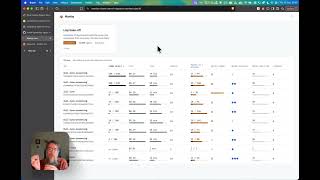
going to monitor service levels we'll be able to
see things that are taking place so as an example
17:50
notice here Galaxy S22 Ultra authorization and
Association that's happening a lot in a very short
17:57
amount of time something's wrong here notice
de-association authorization and association
18:04
a whole bunch of messages like that and then the
client was able to successfully access the network
18:11
so I'm going to run the deauth attack again on
the client I'm going to try and connect to that
18:16
Network and what's happening all the time is it's
getting disconnected connection failed on Juniper
18:23
Mist system we can see this happening a lot time
is 12:57 about and notice all these authorization
18:32
and association messages have happened in the last
few seconds a whole bunch of them taking place
18:39
the client can't connect to the network under
badge here we can also see where there's been an
18:44
authorization failure so the pixel 7 had the wrong
password as an example and what's nice here is we're
18:51
told that there's been an authorization issue psk
failed so wrong password and what's really nice
18:58
is you can download a packet capture and look
at that and you'll be able to see association
19:05
request association response and other messages
so what I really like about the Mist system is you
19:10
can download packet captures very very easily for
example for authorization failures or association
19:15
failures you can download those packet captures
and see what's going on okay I hope you enjoyed
19:21
this video if you did please like it please
consider subscribing to my YouTube channel and
19:25
clicking the bell to get notifications I'm David
Bombal and I want to wish you all the very best