0:00
hey hackers blue cosmo from ccs here
0:02
welcome back to the channel today we're
0:04
going to be playing around with evil
0:05
portal now if you don't know what evil
0:06
portal is it's probably one of the most
0:08
popular modules on the wi-fi pineapple
0:11
but um if you don't know what it is it's
0:13
basically kind of like almost like a dns
0:15
spoofer it kind of like um emulates
0:17
different portals um for your wi-fi
0:19
router and such um so we try to connect
0:22
it will open up like control webpage
0:23
asking you to log in to some sort of
0:25
portal um and we can capture those
0:28
credentials with wi-fi pi app was pretty
0:30
cool so let's go ahead and discover how
0:32
we run or how we can do this um quickly
0:35
if this is your first time with the
0:36
wi-fi pineapple i definitely suggest
0:38
checking out um our wi-fi pineapple
0:40
course on our website what um
0:44
courses um there we have courses on the
0:46
wi-fi pineapple bash bunny usb rubber
0:48
ducky a bunch of other computer science
0:50
and cybersecurity related things so
0:52
definitely check that out but regardless
0:54
let's jump into the video um you guys
0:56
can see that i am on the wi-fi pineapple
0:59
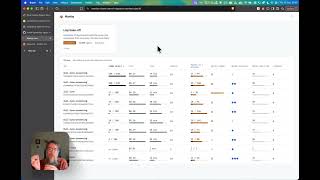
page let me actually go down and uh
1:04
perfect so you guys can actually see
1:06
what i'm doing um if you guys hit that
1:08
news and updates button it just kind of
1:10
make sure that or make sure that we are
1:13
connected to the internet so let's click
1:14
that button make sure that our wi-fi
1:16
pineapple is connected to the internet
1:18
and it is connected to the internet
1:20
awesome awesome awesome awesome awesome
1:22
what we're going to want to do is go to
1:25
the modules and packages section of um
1:29
the wi-fi pineapple it's that little
1:30
puzzle piece button um and then i'll
1:32
take you to our modules and packages uh
1:35
section now we don't have any modules
1:37
installed but let's go ahead and install
1:38
the yfr the evil portal module what
1:41
we're going to do is hit that modules
1:42
tab and hit get available modules
1:46
now you'll see all the modules we can
1:47
get feel free to play around with any of
1:49
them but the one that is
1:51
interesting or pertaining to us today is
1:53
the evil portal right there so
1:56
uh we can go ahead and hit install and
1:58
install it's a really quick install um
2:00
that really could it's a fairly quick
2:02
install that we don't worry about but we
2:04
do have to worry about is the
2:06
dependencies now i have installed this
2:08
before so it shouldn't ask me to install
2:10
the dependencies but if this is your
2:11
first time installing it make sure to
2:13
install those dependencies it should
2:15
only take about a minute maybe two
2:20
it should be fine now you can see it's
2:24
uh client that i already have connected
2:26
to it right um make sure you have your
2:28
rogue access points set up and start it
2:31
up um stop the web server uh we just
2:34
started the video it's right trying to
2:35
get ahead of us now um
2:37
so make sure you have your
2:39
rogue access point started up right in
2:41
my pineapple suite i can go to access
2:43
points and you can see that i have my
2:46
access point set up for people to
2:48
connect to and my phone is currently
2:50
connected to that free wi-fi sss id um
2:54
so we can go back to our modules back to
2:56
evil portal and get everything ready um
2:58
so i want to show you two different uh
3:00
like ways we can have the portal set up
3:02
first i'll show you the basic default
3:04
portal that's really boring really lame
3:06
then i'll show you some of the cooler
3:07
portals that we have um like the ones
3:10
that look like google or facebook or
3:12
like starbucks and stuff um so people
3:14
think that they're logging into those
3:15
websites um instead of
3:18
you know some fake default page but to
3:20
get the idea to your brains um we're
3:22
going to make a default portal first and
3:25
kind of show you how it works
3:26
we can do a basic portal the targeted
3:28
portal can be used to target specific
3:31
peoples and such but the basic portal
3:33
will be fine um this is going to be an
3:35
example portal so we can just do example
3:38
and hit done um cool so what we can do
3:41
is actually start up evil portal
3:45
you can see that it started up awesome
3:46
awesome awesome so if we hit activate uh
3:49
it's going to activate that default
3:51
portal and this is what it's going to
3:52
look like right um when you go into the
3:58
on my phone we've connected to
4:00
um my rogue access point i can actually
4:02
record my screen for you guys let's just
4:05
go on the ip address of the routers 172
4:10
16.42.1 and if we go to that it's going
4:13
to ask us to authorize now i'm not going
4:14
to click authorize um because it already
4:17
added me to the allow clients but
4:19
basically when we go on the routers page
4:23
um this default evil portal like the one
4:25
that we have right here um
4:29
but that's not super useful other than
4:32
like you know letting them know that
4:33
we're using the evil portal right so now
4:36
that we have um this basic portal set up
4:39
let's go ahead and deactivate that one
4:40
it's pretty boring we can delete it um
4:42
and let's get some of the cooler ones on
4:44
our computer so uh you can click the
4:46
link in the description to take you to
4:48
this evil portals github repository and
4:51
here they have some of the coolest um
4:53
portals that you could have right you
4:55
can see uh we have ones for google
4:57
we have ones for uh whoops
5:00
oh that takes you two new tab got you so
5:02
we have one for google they have one for
5:10
and uh some day default like wi-fi
5:13
actual login page whatever um that one
5:16
has even a download theme i think you
5:18
can have like an apk if you want to get
5:21
um some sort of msf venom payload for
5:24
androids or something like that uh feel
5:26
free to do that but um we are going to
5:28
focus on this um we don't really need to
5:31
worry about all this stuff it's pretty
5:32
straightforward on how to do it um so
5:34
what i'll do is we'll open up a new uh
5:40
if you have a wi-fi pineapple directory
5:41
i suggest going to it i have my own
5:43
wi-fi patent apple directory for videos
5:46
like this um but feel free to uh
5:50
just do it in your home directory or
5:51
whatever so what we're going to do is
5:53
get clone that directory so we can do
5:55
git clone let me make this a little bit
5:57
bigger for you guys as well get clone
5:59
and then we're going to do
6:01
https colon slash github.com
6:07
slash evil portals all right and if we
6:11
hit that it's going to download that
6:15
um directory so you can see we have that
6:17
evil portals right there um so if we see
6:20
the into our evil portals and list you
6:22
can see there's some portals there so we
6:24
can go into the portals and if we list
6:27
we can see some of the cool ones yes
6:28
there's the instagram one there's a
6:30
starbucks one twitter yahoo facebook and
6:33
the other ones we saw on the website uh
6:36
for this example i think i'm gonna just
6:37
use google because it's kind of like a
6:39
easily easy one that we can recognize so
6:42
first things first we need to get this
6:44
onto our wi-fi pineapple now if you
6:45
didn't know the wi-fi pineapple has ssh
6:48
which means we can use scp so let's use
6:54
google bank on thing to our uh wi-fi
6:57
pineapple now to kind of help you
7:00
understand uh with the wi-fi pineapple
7:02
um i'll quickly ssh into the wi-fi
7:05
pineapple to help you guys understand
7:07
right so we'll do ssh and then we'll go
7:21
i believe yes perfect now type in your
7:23
password for the wi-fi pineapple and now
7:28
ssh import will be ssh into our wifi
7:31
pineapple so we can list and we can see
7:33
there's this portals directory which is
7:37
our um evo portal denim or evil portal
7:40
payload right so if i go out of my
7:44
terminal and we'll go back into this one
7:47
let's go ahead and take our google
7:51
directory and we'll put it onto
7:54
the wi-fi pineapple so we'll do um root
7:58
which is our username at our wi-fi apple
8:00
ip address which is 172.16.42.1
8:05
um and then we're going to specify the
8:07
directory which is the root directory
8:10
and then the portals directory which
8:12
which is within that root directory um
8:16
we can run that and type in the password
8:18
for our wi-fi pineapple
8:21
and there you go it sent all that
8:24
information to our wi-fi pineapple so if
8:26
i go into our wi-fi pineapple
8:29
i can see the intel portals
8:31
and if i list you can see we have that
8:35
portal right there so let's go back to
8:41
our evil portal right now if i just hit
8:44
f5 and refresh the page you'll see that
8:47
we have our google login right there
8:49
perfect um so let's go ahead and
8:51
activate um our portal uh real quick i'm
8:55
going to delete my phone off of that
8:58
and uh there you go so now if we go back
9:01
to our router through our phone we'll
9:05
a google login page that'll look kind of
9:06
like this right it's the google login
9:08
page it's going to ask you to put in uh
9:10
your email password and such so let's go
9:13
ahead on my phone cool so let's go ahead
9:15
and go back to the ip address of
9:19
172.16.42.1 which is the address of our
9:22
router and you can see that hey it looks
9:24
like a google sign-in so let's say uh
9:28
we signed into google we'll just say
9:36
and then the password will say the
9:43
and then it'll say you've not been
9:45
authorized right so you know
9:47
it's basically emulating a google login
9:52
through the wi-fi panel like a dns with
9:54
fanta it's pretty cool um so now that
9:57
that works we can actually view the log
9:58
and see hey this is what we just sent
10:00
out right this is our phone that we just
10:02
had connected to it and you'll see we
10:04
have that email at gmail.com and super
10:07
secure i misspelled my password but the
10:09
point is still there that hey uh
10:12
it got our email and our password from
10:16
client um so you can try this with not
10:18
just the google login but with any of
10:20
the other logins that we have and feel
10:24
yeah that's pretty cool that's pretty
10:27
that's going to be it for this video
10:28
this very basic tutorial on how to use
10:30
the evil portal module on the wi-fi
10:32
pineapple um feel free to start creating
10:34
your own i might even try to create my
10:36
own because i'm going to be
10:38
a cool you know live stream or something
10:40
but hey that's for a future video uh but
10:42
regardless thank you so much for
10:44
watching and i will see you all in the
10:46
next one so stay happy stay positive and
10:48
as always happy hacking
10:51
hey hackers blue cosmo from ccs here and
10:53
i wanted to introduce you guys to the
10:55
happy hacker site plan the happy hacker
10:57
site plan is a plan where you guys can
10:59
support us for only one dollar a month
11:01
that's right one dollar with this comes
11:03
exclusive benefits like courses articles
11:06
videos and access to our entire cyber
11:08
security knowledge base um if this
11:10
interests you and you guys want to um
11:13
get access to all this check out the
11:15
link in the description it's only one
11:16
dollar so we definitely appreciate your
11:18
guys support um anyway enjoy the video